
Search
- Log in to your AWS account and console.
- Click on the AWS CloudFormation page.
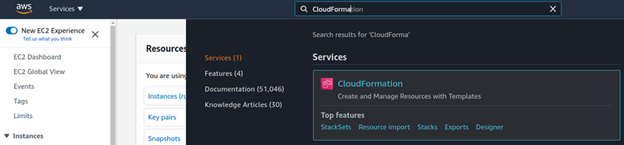
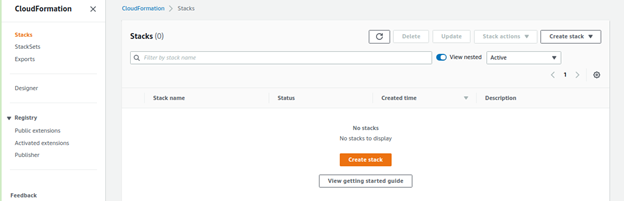
- In the CF page, click Create Stack:
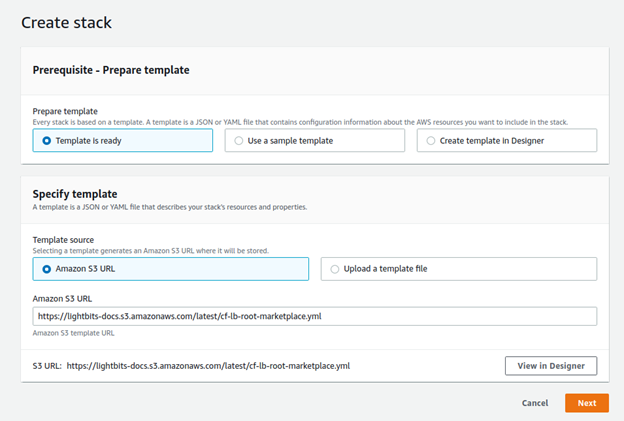
- The Create Stack page will appear. Select the Amazon S3 URL option and paste in the Amazon S3 URL field the link provided to you by Lightbits Support. See the example below through this link.
- Click Next.
- Fill in the parameters as explained in the CF Parameters section of this guide.
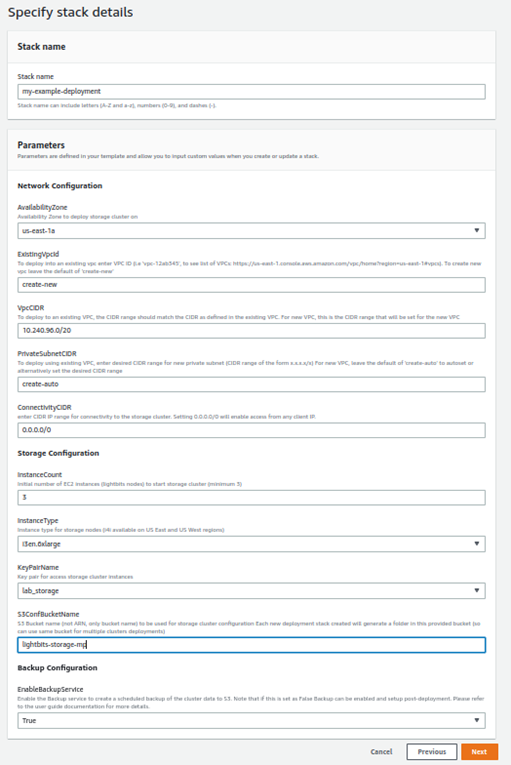
- Once all the fields are populated, click Next.
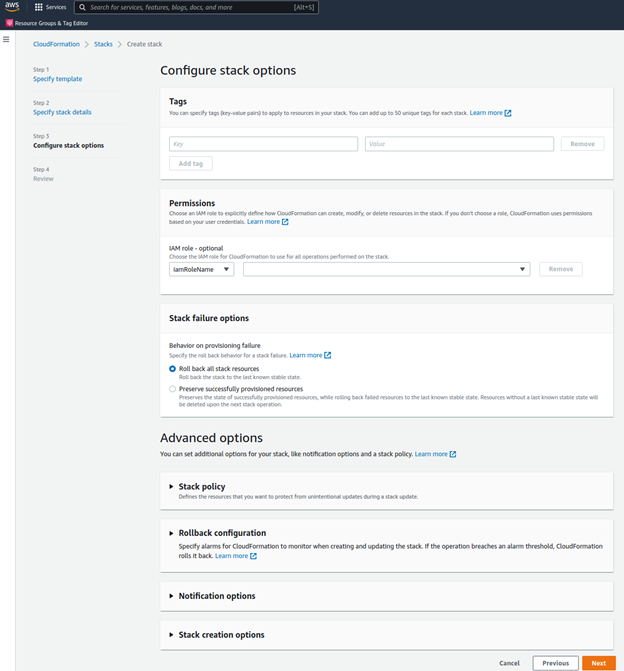
The Preserve successfully provisioned resources checkbox option is useful for keeping resources up even if deployment fails. Refer to the Troubleshooting section of this guide for additional information.
- Go to the bottom and accept the two checkboxes.
- Click Create Stack.

Once you click Create Stack, you will notice that the stack creation process initializes the root stack template that will initialize several nested stack templates. The nested stacks will appear at the top of the list (use the Refresh button to see its progress).
Was this page helpful?