
Search
The backup infrastructure is set up during the initial setup of the cluster via CF, and by default the backup is enabled. If you are interested in enabling the backup or changing the bucket, you will need to update a few fields in the environment variable of the backup Lambda function.
Fill out the following details:
| Parameter Name | Type | Required | Default | Comments |
|---|---|---|---|---|
| EnableBackupAndRestore | True/False | Yes | 'True' | If the backup function is not required, mark as False. |
| S3BackupBucketName | String | Yes | This will get the bucket created by the CF Stack. | The S3 bucket name where the backups are stored. This should have read/write permissions. |
| S3BackupBucketPath | String | Yes | ‘lightos-backups’ | The backup should be stored in a specific path in the bucket. See the Backup Structure section of this guide for additional information. |
| BackupLambda PeriodMinutes | String | Yes | 1440 | Interval (in minutes) between backups. Since the backup is currently of all the volumes, the minimum interval is 360 minutes (6 hours). |
| MaxInstanceCount | String | Yes | 2 | The number of exporter instances running in parallel. It is recommended to leave this at two unless you have a large amount of data to back up and the backup period is not sufficient. There is no maximum, but increasing the maximum will increase the cost as well. |
| TimeBeforeDownscaleMin | String | Yes | 60 | Idle time in minutes of exporter instances before they are shut down. Reducing this number will reduce cost but will delay the start of the next backup/restore by ~10 minutes. |
- In the AWS console, go to the Lambda dashboard.
- From the left menu, select Function.
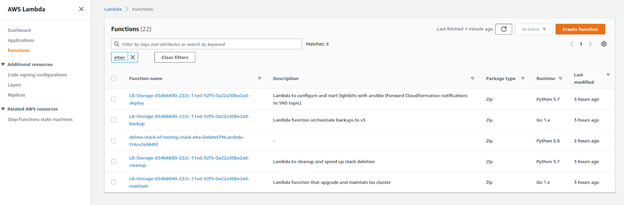
- In the filter, enter Backup. This will show you the backup Lambda that is responsible for the backup exporter execution.
- Click the Lambda Function.
- Switch to the Configuration tab.
- Click the Environment Variable on the side and you will see various configuration keys.
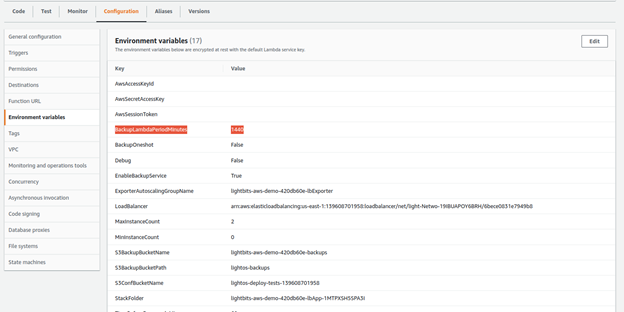
- Click Edit.
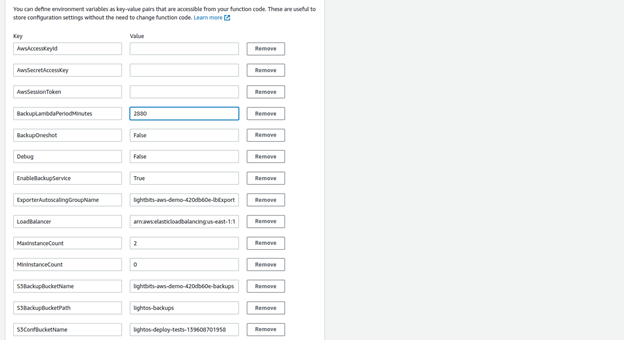
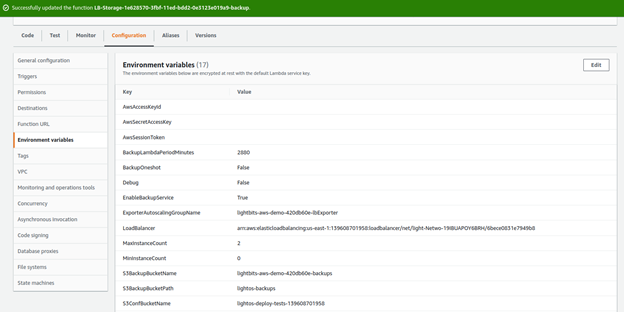
- Change the required values and click Save. Note that this change will take effect for pending backups and for the next backup cycle it will not affect ongoing running backups. No other parameters should be changed.
Was this page helpful?