Lightbits CSI Plugin Guide
Lightbits vCenter Configuration Guide
Lightbits OpenStack Driver Support
Lightbits DMS Guide
Lightbits Cluster Federation
Title
Message
Create new category
What is the title of your new category?
Edit page index title
What is the title of the page index?
Edit category
What is the new title of your category?
Edit link
What is the new title and URL of your link?
Installing the Lightbits Operator on OpenShift 4.19
Copy Markdown
Open in ChatGPT
Open in Claude
The following are instructions for how to install Lightbits Operator on OpenShift version 4.19.
You will first need to create a new project for the CSI, using #oc new-project <project-name>.
- Install the operator using the OpenShift Web Console.
- Create the cluster and csidriver CRs in your own selected OpenShift project.
The following steps detail how to install the Lightbits CSI using the Red Hat OperatorHub.
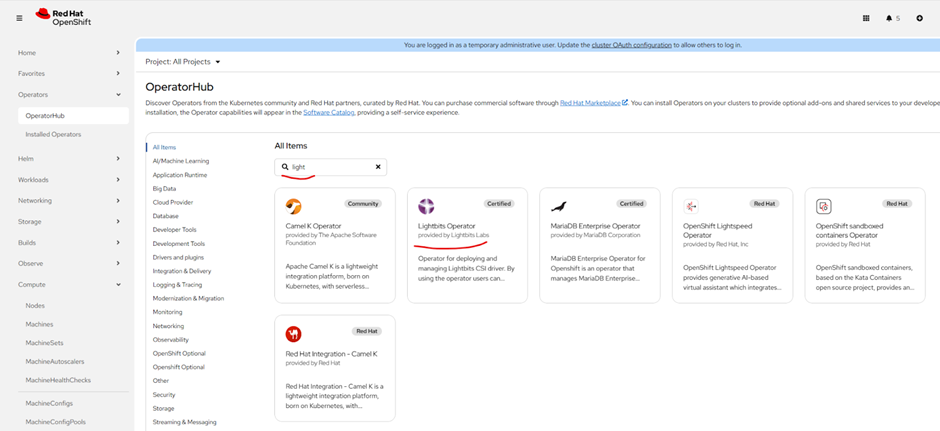
- Use the OpenShift Web Console to install the Lightbits Operator. Select the OperatorHub and search for Lightbits and follow the on-screen instructions.
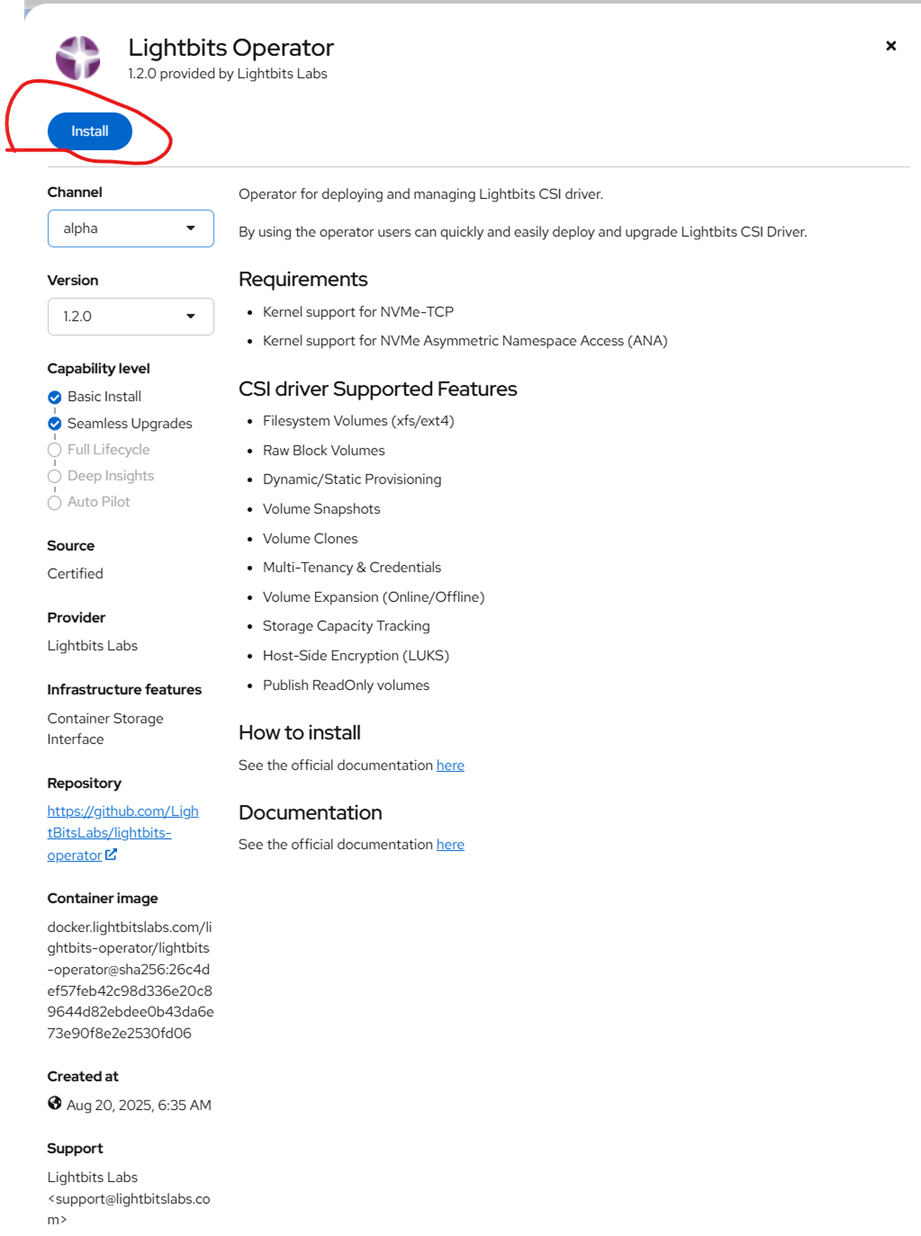
- Click Lightbits Operator.

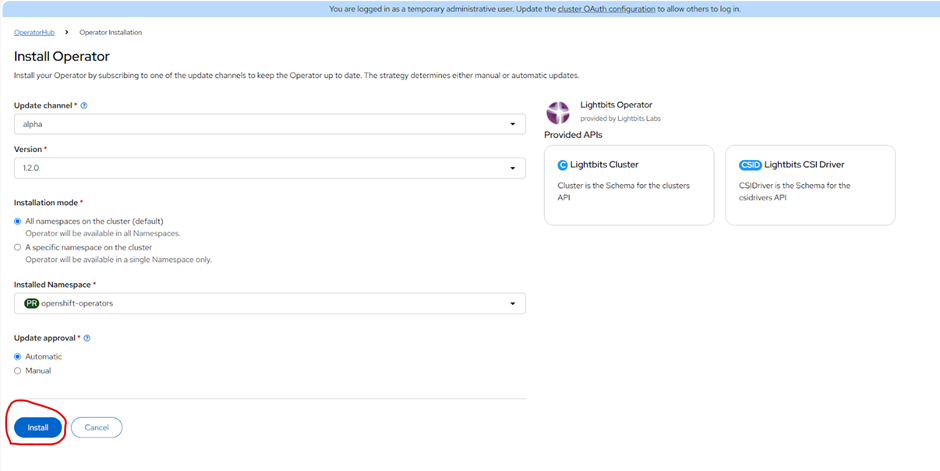
- Click Install.

- Click Install.

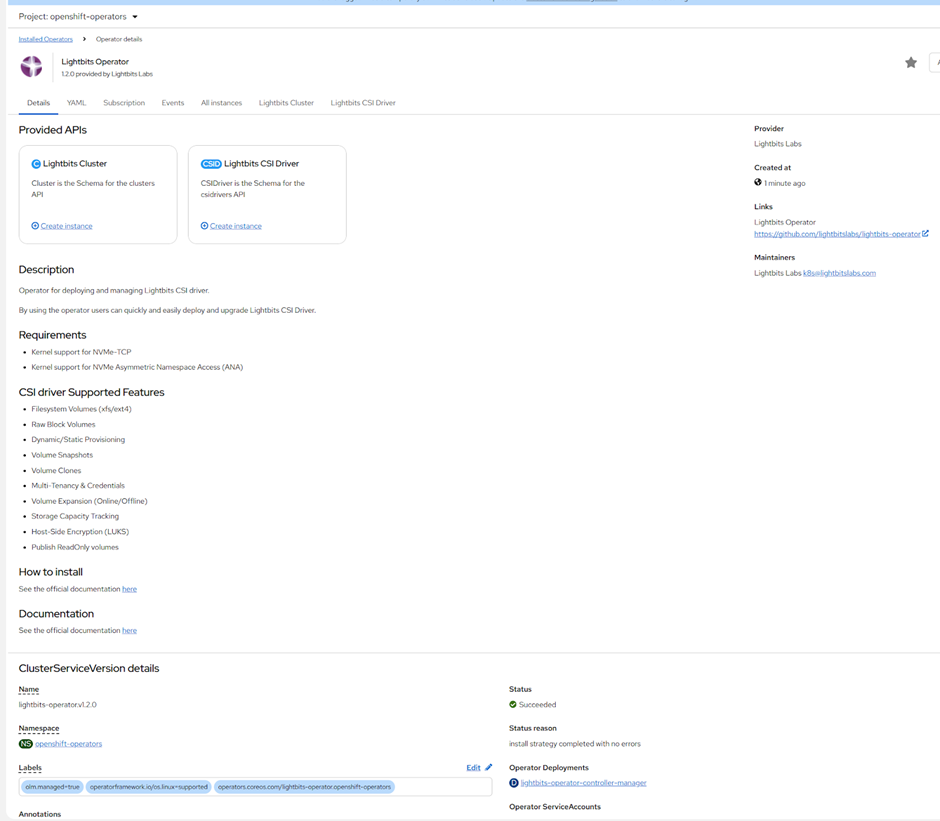
- Click View Operator if you want to inspect it.
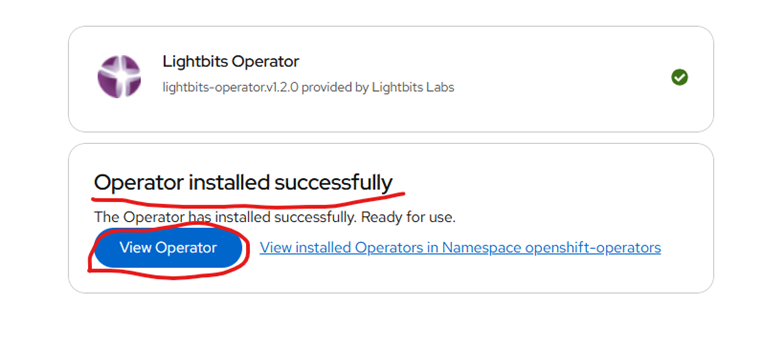

- Create a secret yaml file for the Lightbits cluster. Below is a sample of a secret file. Make sure to change the
<name>and<namespace>, and add the base64 format Lightbits JWT token.
Bash
# Source: lb-csi-workload-examples/charts/storageclass/templates/secret.yamlapiVersion: v1kind: Secretmetadata: name: lb-secret namespace: lightbits labels: helm.sh/chart: "storageclass-0.1.0" app.kubernetes.io/instance: "release-name" app.kubernetes.io/version: "" app.kubernetes.io/managed-by: "Helm"type: Opaquedata: jwt: |- ZXlKaGJHY2lPaUpTVXpJMU5pSXNJbXRwWkNJNkluTjVjM1JsYlRweWIyOTBJaXdpZEhsd0lqb2lTbGRVSW4wLmV5SnBjM01pT2lJdllXNXphV0pzWlM5c2FXZG9kRzl6TFdObGNuUnBabWxqWVhSbGN5OWpaWEowTFd4aUxXRmtiV2x1TFd0bGVTNXdaVzBpTENKeWIyeGxjeUk2V3lKemVYTjBaVzA2WTJ4MWMzUmxjaTFoWkcxcGJpSmRMQ0poZFdRaU9pSk1hV2RvZEU5VElpd2ljM1ZpSWpvaWJHbG5hSFJ2Y3kxamJHbGxiblFpTENKcFlYUWlPakUzTlRjek5UZ3hNeklzSW1WNGNDSTZNVGM0T0RnNU5ERXpNbjAuVzViYWlYZWR3Z3BfcGFDc3hWa1N1VDQtOXFvMEk1VThaMHZncnoxTGw0OWhlYkZmbTFQUHA4S2pXNDRaVEFST2Vqa1N1TF9aSlJ3elc2bERTYlFLX0tYeDNOMmhHQnQ0ODk5TmEzNGJrRE5LTy1POEdlN1lrNHE1VEt4dExURVhhc1JhUlc1YUdRbGhtMTViQnBuSTRzOXp6ZjhhU3pDdndodGJJWFNSZVM0WXRXZDAyWklHcTd3bmVfd1ZnX2FPQkxBcVdiVk1WR0JhTDJQb0pNZmlya0hiZmNMazdvdzdtNUc1SDdqczhjVFVaRkZDWERlYXNMSjZLeHU3Mk1aa25iSDVOajNwSlBjUFVpbXVxdmVaempFRUxvTnpfcmVwX3NIWlFrckNicmxEUE5TNXBPZkpLVG01d3JIbjNJZHRYYWFvX0ItbEVBTlVQaENmeE5qYlZR- Deploy the secret file and verify:
# oc apply -f <secret>.yaml
# oc get secret -n <namespace>
- Create a Lightbits Cluster Custom Resource (CR) and install it. Below is an example of the CR. Make sure to change the IP addresses and other relevant fields.
Bash
apiVersion: storage.lightbitslabs.com/v1alpha1kind: Clustermetadata: name: lightbits-cluster namespace: lightbitsspec: clusterName: jpmc-lightbits projectName: default clusterAdminSecretName: lb-secret addresses: - ip: x.x.x.x port: 443 scheme: grpcs - ip: y.y.y.y port: 443 scheme: grpcs - ip: z.z.z.z port: 443 scheme: grpcs# oc apply -f <lightbits-cluster.yaml>
- Create a Lightbits CSI Driver CR and install it. Below is a sample of the CSI driver CR.
Bash
# lightbits-csidriver.yamlapiVersion: storage.lightbitslabs.com/v1alpha1kind: CSIDrivermetadata: name: lightbits-csi namespace: lightbitsspec: clusterRef: name: lightbits-cluster namespace: lightbits controller: {} node: {}# oc apply -f <lightbits-csidriver.yaml>
- Verify to ensure that the
statefulsetanddaemonsetare running.
# oc -n <project> get sts,ds,pods
- Create a storage class and install it. Below is an example of a storage class. Make sure to change the values to reflect your cluster.
Bash
# Source: lb-csi-workload-examples/charts/storageclass/templates/storageclass.yamlapiVersion: storage.k8s.io/v1kind: StorageClassmetadata: name: lb-scprovisioner: csi.lightbitslabs.comallowVolumeExpansion: trueparameters: mgmt-endpoint: x.x.x.x:443 replica-count: "1" compression: disabled project-name: default mgmt-scheme: grpcs csi.storage.k8s.io/fstype: ext4 csi.storage.k8s.io/controller-publish-secret-name: lb-secret csi.storage.k8s.io/controller-publish-secret-namespace: lightbits csi.storage.k8s.io/controller-expand-secret-name: lb-secret csi.storage.k8s.io/controller-expand-secret-namespace: lightbits csi.storage.k8s.io/node-publish-secret-name: lb-secret csi.storage.k8s.io/node-publish-secret-namespace: lightbits csi.storage.k8s.io/node-stage-secret-name: lb-secret csi.storage.k8s.io/node-stage-secret-namespace: lightbits csi.storage.k8s.io/provisioner-secret-name: lb-secret csi.storage.k8s.io/provisioner-secret-namespace: lightbits# oc apply -f <lightbits-sc.yaml>
- Verify:
# oc -n <namespace> get sts,ds,pods
- This completes the procedure. You can now create the pods and pvc to test it.
Type to search, ESC to discard
Last updated on
Was this page helpful?
Next to read:
Abbreviations and Terms© 2026 Lightbits Labs™
Discard Changes
Do you want to discard your current changes and overwrite with the template?
Archive Synced Block
Message
Create new Template
What is this template's title?
Delete Template
Message